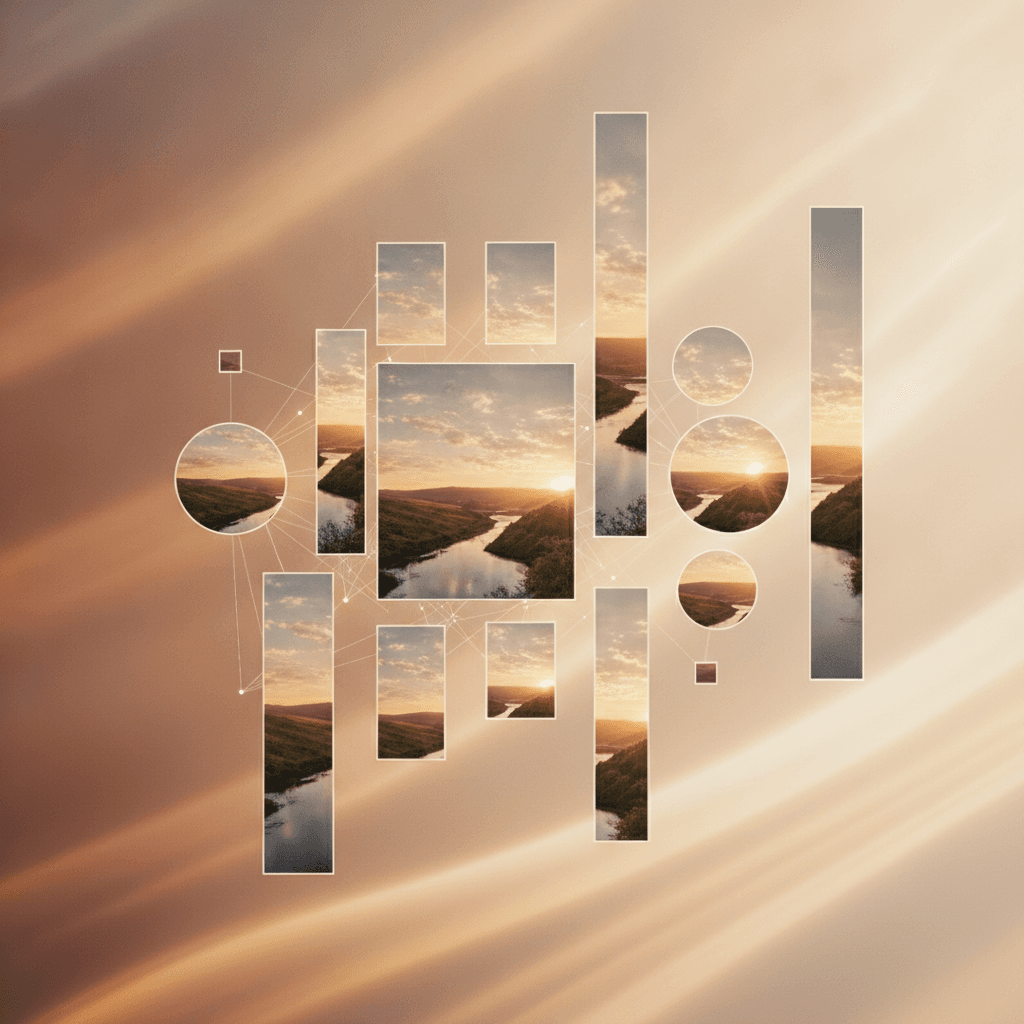
In today's multi-device world, images are often the largest contributors to page weight and a critical component of visual storytelling. While simply scaling down a large image for smaller screens is a common practice, it often leads to compromises in design intent, user experience, and performance. This approach neglects a powerful technique known as art direction, where the image itself changes based on its display context.
Art direction for responsive images goes beyond mere resizing; it involves delivering different image compositions, crops, or even entirely different images tailored to specific screen sizes or resolutions. The key HTML element that empowers developers and designers to implement this sophisticated visual control is the `<picture>` element. Mastering it allows you to craft truly responsive and visually compelling experiences across every device.
Beyond Simple Scaling: Why Art Direction Matters
When you simply scale an image down, you might lose important details, make text within an image unreadable, or present a composition that doesn't work well in a narrow viewport. Art direction addresses these issues by allowing you to specify different image sources for different scenarios. For instance, a wide landscape hero image on a desktop might be cropped to a tighter portrait view on a mobile device, ensuring the main subject remains prominent and legible.
The benefits extend beyond aesthetics. By serving images that are specifically optimized for a given context, you can significantly reduce file sizes, leading to faster load times and a smoother user experience, especially on mobile networks. It's about delivering the right image, at the right size, for the right device, every time.
Understanding the <picture> Element
The HTML `<picture>` element acts as a container for multiple `<source>` elements and a mandatory `<img>` element. It doesn't display anything itself; instead, it allows the browser to choose the most appropriate image source from the options provided within its `<source>` children, falling back to the `<img>` element if no suitable `<source>` is found or supported.
Each `<source>` element specifies an image file along with a media condition (like a media query) that tells the browser when to consider that particular image. The browser iterates through the `<source>` elements in the order they appear and picks the first one whose media condition matches the current browsing environment. This hierarchical approach is crucial for effective art direction.
Practical Art Direction with media Queries
The `media` attribute within the `<source>` element is your primary tool for art direction. It accepts standard CSS media queries, allowing you to define breakpoints for different image compositions. For example, you can specify that a wider, uncropped version of an image should be used for screens wider than 768px, while a more tightly cropped version is used below that threshold.
Consider a photograph of a person standing in a vast landscape. For large screens, you might want to show the full scene to convey scale. For smaller screens, you might crop in on the person's face to maintain focus and detail. The `<picture>` element, with its `media` attribute, provides the precise mechanism to implement this dynamic image swapping based on viewport characteristics.
Optimizing with srcset and sizes (within <source>)
It's important to remember that `srcset` and `sizes` attributes, which handle resolution switching, still play a vital role *within* each `<source>` element. While `media` in `<source>` dictates *which* image composition to use based on a condition (art direction), `srcset` and `sizes` then tell the browser *which resolution version* of that chosen image to load based on the device's pixel density and the image's display size.
This combination is powerful: first, the browser selects the correct art-directed image based on your `media` query. Then, for that selected image, it uses `srcset` and `sizes` to pick the most efficient resolution from the available options. This ensures both optimal visual presentation and peak performance.
Common Art Direction Scenarios
Art direction with the `<picture>` element is incredibly versatile. Here are some common scenarios where it significantly enhances the user experience:
- Cropping for focus: Displaying a different crop of an image to keep the main subject visible and prominent across various aspect ratios.
- Changing image content: Swapping an entirely different image based on context, e.g., a detailed diagram for desktop versus a simplified icon for mobile.
- Adapting text overlays: Using an image with integrated text for larger screens, and a text-free version for smaller screens where the text might become unreadable or is handled separately.
- Hero images: Providing a dramatic, wide hero image for desktop users and a more focused, portrait-oriented version for mobile.
- Performance optimization: Delivering genuinely smaller, optimized files for mobile devices, rather than merely scaling down a large desktop-oriented image.
Best Practices and Considerations
Implementing art direction effectively requires careful planning. Collaborate closely between design and development teams to identify which images require art direction and to prepare the necessary assets. This upfront work pays dividends in terms of visual quality and performance.
Always include a robust `<img>` element as the last child within your `<picture>` element. This serves as a vital fallback for older browsers that don't support `<picture>` and ensures that an image is always displayed, even if no `<source>` condition is met. Moreover, remember to provide descriptive `alt` text for the `<img>` element, ensuring accessibility for all users, regardless of the image variant loaded. Balance the effort of creating multiple assets with the actual user experience gains—not every image requires art direction.
Sources & Further Reading
- picture: The Image element — MDN Web Docs
- Responsive images — MDN Web Docs
- Responsive images — web.dev
- Responsive web design — Wikipedia